Local Visibility
Where your business ranks on Google Maps for the searches people make nearby, who ranks above you, and how it changes over time.
Local Visibility shows where your business comes up on Google Maps when people nearby search for what you offer, which businesses are listed above you, and how that changes over time. It's included in every plan.
 Local Visibility
Setting up local tracking
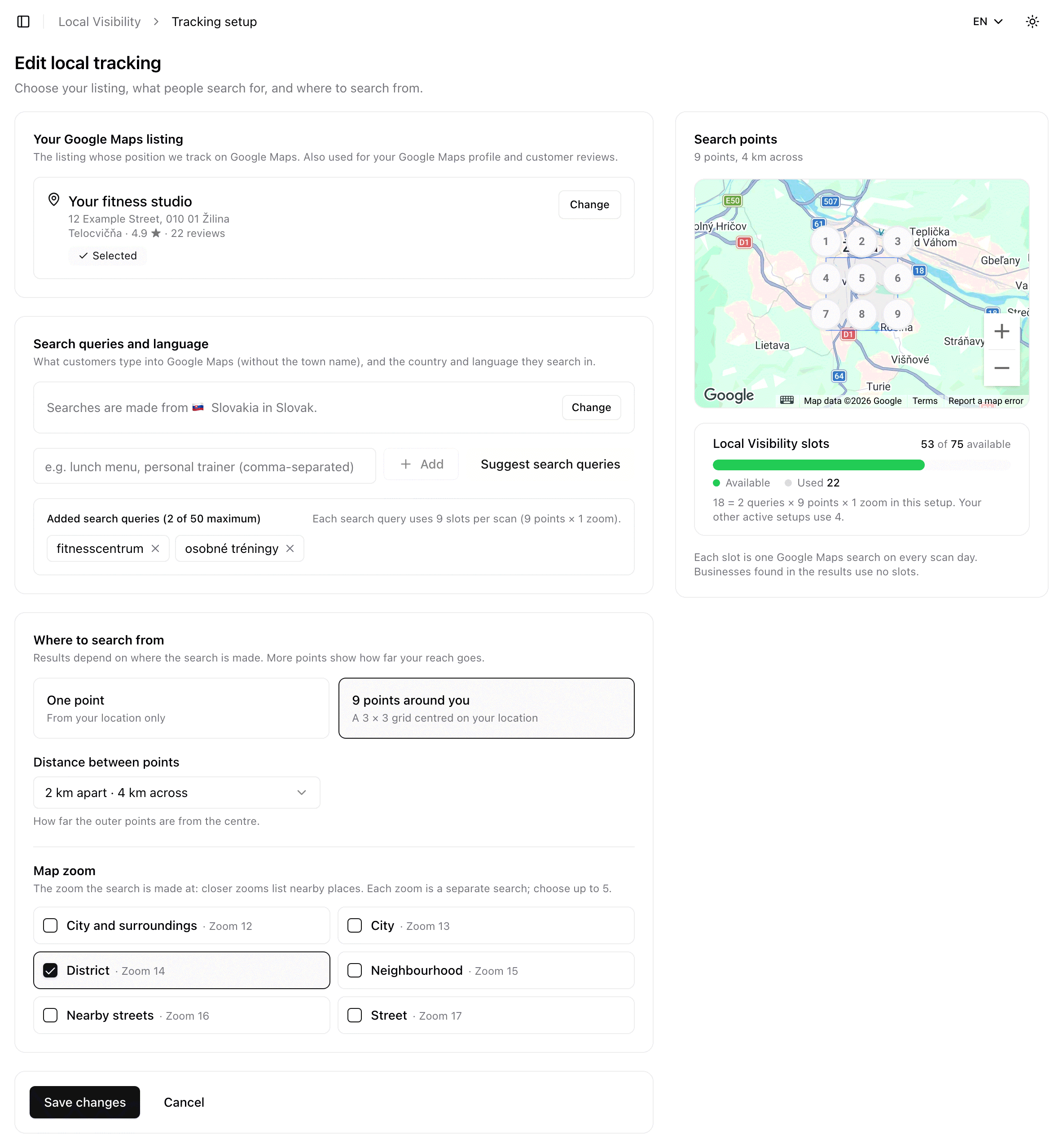
Open Local Visibility in the menu and click Set up local tracking. The setup has four parts.
 Setting up local tracking
Your Google Maps listing
The listing whose position we track. We suggest one when we can; otherwise search Google Maps for your business name and town, or open your business on Google Maps and paste the link from the address bar. The same listing is used for your Google Maps profile and customer reviews in Profiles and reviews, so changing it here updates it there too.
Search queries and language
What customers type into Google Maps, without the town name, for example "hairdresser" or "personal trainer". Add them separated by commas, or click Suggest search queries for ideas based on your business. Suggestions don't use AI Assistant credits.
Searches are made from the country and in the language shown in this part of the form; click Change to pick others.
Where to search from
Google Maps lists different businesses depending on where the search is made.
- One point searches from your location only.
- 9 points around you searches from a 3 × 3 grid centred on your location. Choose the distance between points to cover the area your customers come from. It shows how far your reach goes: you might be first next door and missing two kilometres away.
Map zoom
The zoom the search is made at, from city and surroundings to street. Closer zooms list places nearby. Each zoom is a separate search, so choose the ones that match how your customers look for you, up to five.
Save and start tracking runs the first check straight away; results show up within a few minutes. After that, Google Maps is checked on your plan's tracking days, the same days as your prompts and search queries.
Local Visibility slots
Every plan includes as many Local Visibility slots as it has prompts. One slot is one Google Maps search on each tracking day: one search query, from one point, at one zoom.
slots = search queries × points × zooms
For example, 2 search queries from 9 points at one zoom use 18 slots. The Local Visibility slots card shows how many this setup uses and how many are still free. Businesses found in the results use no slots.
Slots are shared by all your brands. An active setup counts for everyone the brand is shared with, so each of them needs enough free slots. If your plan ends up with fewer slots than your setups use, for example after a downgrade, scheduled checks are skipped until you use fewer search queries, points or zooms. See Plans and usage.
Reading the results
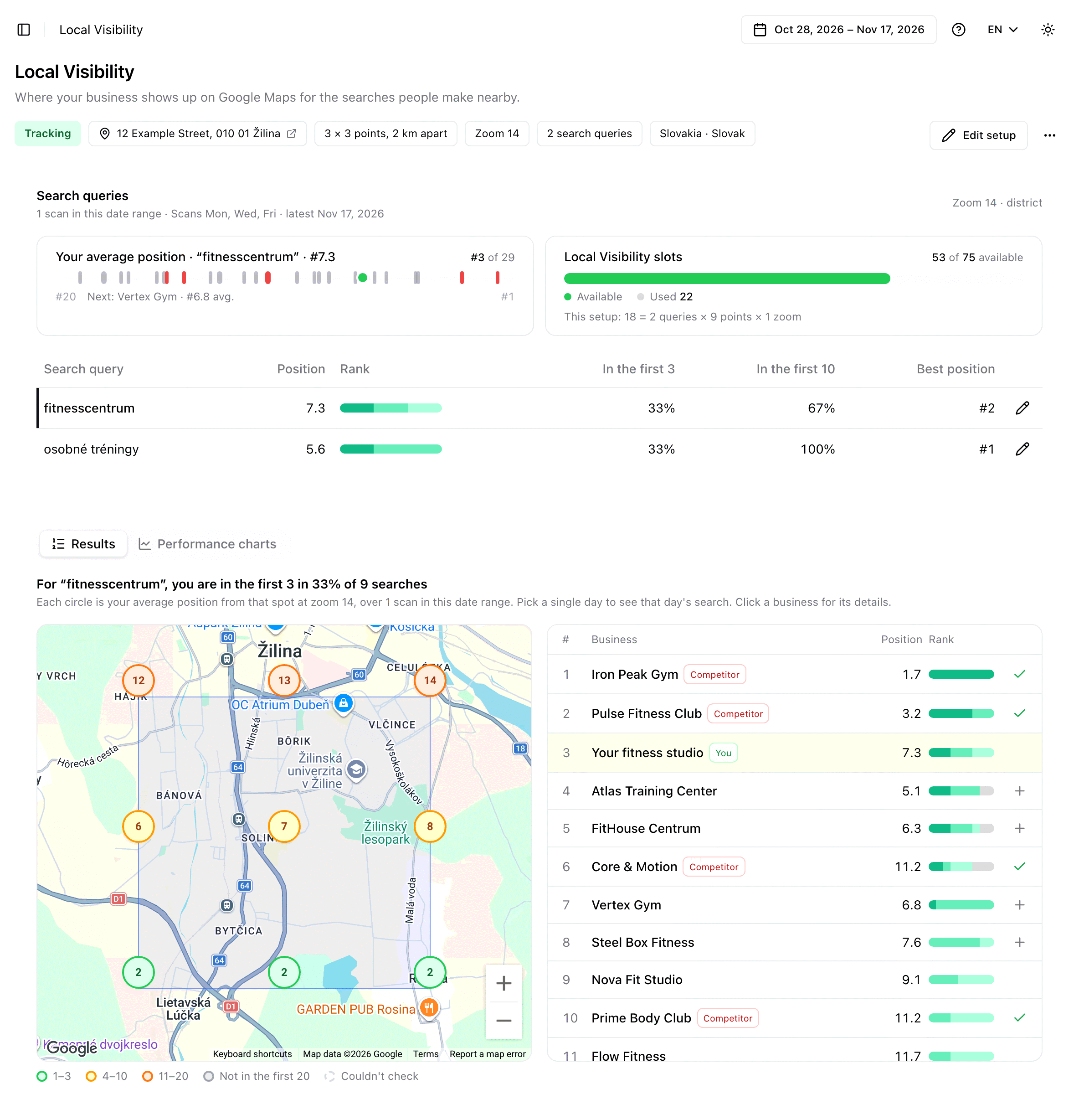
The chips at the top repeat what you track: your listing's address, the points, the zoom, the number of search queries, and the country and language. The page shows the date range picked at the top, the same way as AI Visibility and Search Visibility. Pick a single day to see that day's check.
Search queries
For each search query:
- Position — your average position on Google Maps across the searches in the date range.
- Rank — how your positions split: first 3, 4–10, 11–20, and not in the first 20.
- In the first 3 and In the first 10 — how often you were there.
- Best position — your best result in the range.
Above the table, Your average position ranks you against every business listed for the selected search query and names the one just ahead of you. Click a search query to see its results and charts.
Results
The map shows a circle at each search point with your average position from that spot:
- green — positions 1–3,
- orange — positions 4–10,
- red — positions 11–20,
- grey — not in the first 20,
- dashed — couldn't be checked.
Next to the map is every business Google Maps listed for the search query, with its average position and rank breakdown. Your listing is marked You, and competitors you track are marked Competitor. Click a business to see its rating, reviews and best position, and to open it on Google Maps.
Tracking a business as a competitor
Track adds a business from the list to your Competitors, using the same dialog as the Competitors page. A business needs its own website to be tracked as a competitor; a listing with only a Facebook page or a directory profile can't be. When a listing belongs to a competitor you already track, Add to … adds it as one of their locations instead.
Performance charts
How the search query moved from check to check: your position, how often you were in the first 3 and the first 20, and your best position. Dashed lines mark the checks after you changed the setup, because the comparison changes from there.
Editing, pausing and removing
Edit setup opens the same form. Changing a search query, point or zoom starts a fresh comparison for the parts you changed; everything else keeps its earlier results. From the ⋯ menu you can Pause tracking, which stops the checks and frees the setup's slots until you resume it, or Remove the setup. Removing it also stops the checks and frees its slots; its past results are kept but no longer shown.